
Chrome side panel
Find out why your Meta Pixel is not detected
Several different problems make a pixel look silent. Meta Pixel Fixer checks the page you have open, tells you which problem it found and gives you a plain fix.
Runs in your browser. No account. Nothing leaves your computer.
The problem
Pixel not detected?
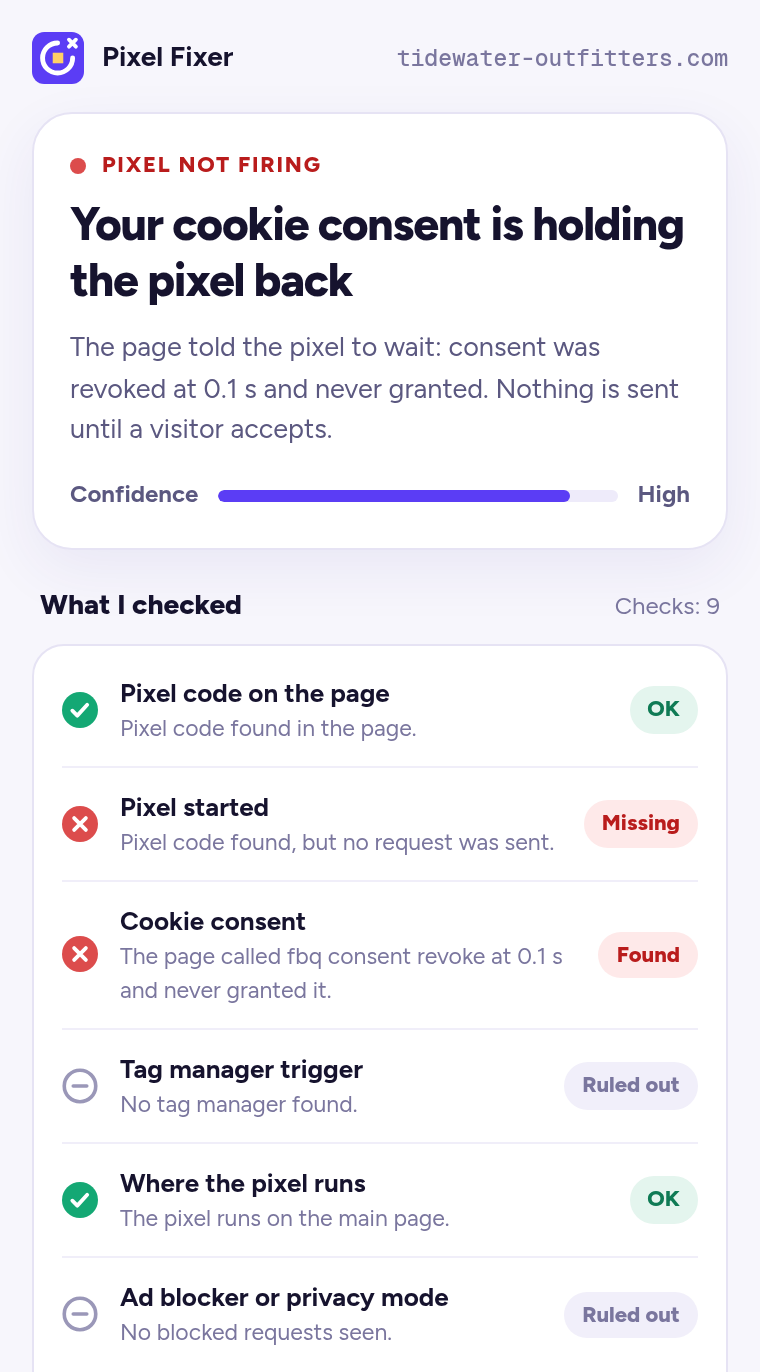
A pixel that is not firing and a pixel that is not detected can look exactly the same from the outside. You see nothing, but the cause can be one of several unrelated things.
A cookie banner may be holding the pixel. A tag manager may fire it late. A blocker may stop it. It may sit inside an iframe or a sandbox. A policy may block the script, or the setup order may be wrong.
Guessing between these wastes hours. The panel looks at the page, checks each cause and shows the evidence, so you fix the right thing the first time.
The causes it checks
Ten possible answers, one verdict
Each card is something the Diagnose tab can tell you. When two signs point to different causes, it says so and shows how sure it is.
Cookie consent
A cookie banner or consent setting holds the pixel back until a visitor accepts.
Tag manager trigger
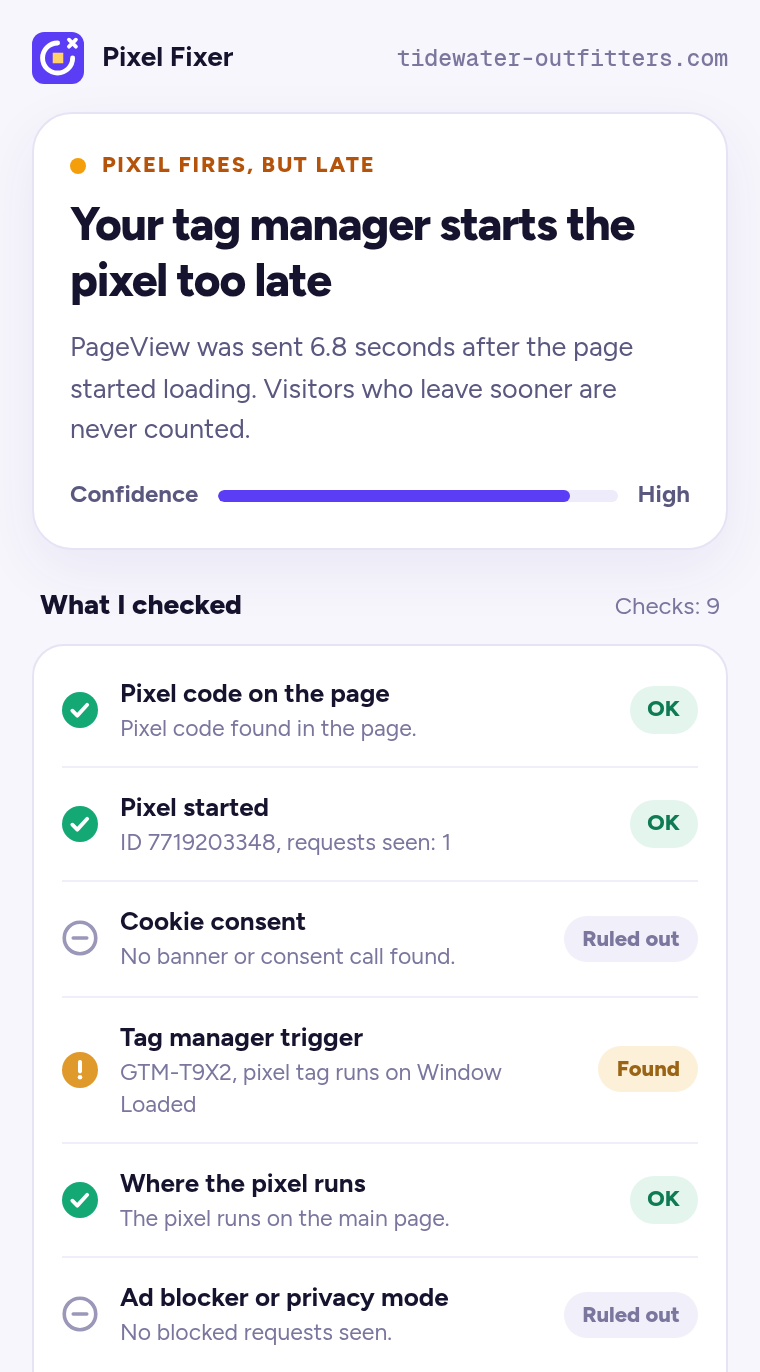
The pixel tag starts late or never starts, and the panel names the trigger it found.
Pixel in an iframe or sandbox
The pixel runs inside a frame, so tools that read only the main page miss it.
Ad blocker or privacy mode
The pixel script was likely blocked. This is reported as likely, because only your browser knows what blocked it.
Content Security Policy
A page policy stops the pixel script from loading, and the panel shows the rule that did it.
Library loaded late or never
The pixel library arrives after the page has moved on, or it never finishes loading.
Setup order and pixel ID
Calls come before the library, the ID is not valid, or the same pixel is set up twice.
Single page app page changes
The page changes its content without a reload and sends no page view for the next screen.
No pixel on the page
The code is not there at all, and you get a plain message instead of a guess.
Healthy pixel
Nothing is wrong. You get a clear message that the pixel is firing and what the panel checked.
Every event, with a status
See what the page really sends
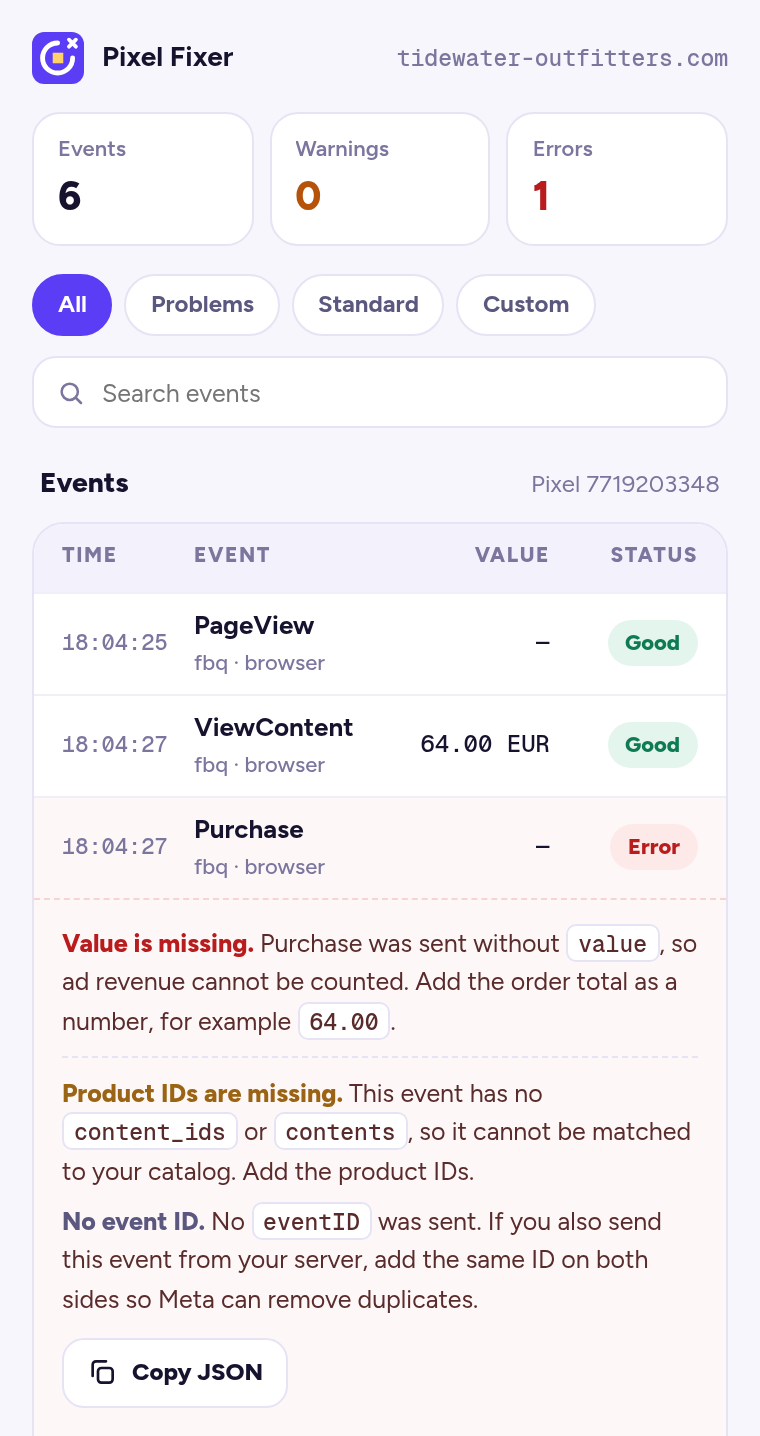
The Events tab lists every pixel event as the page sends it, with the time, the value and one status.
- Good
- Late
- Warning
- Error
More than 40 checks run on every event. They find things like these:
- A Purchase without value or currency
- Event names with the wrong capitalisation
- The same event sent twice
- Personal data inside a request
- A missing page view event
Copy JSON turns any event into text you can send to a developer or a client in one click.
Filters and search show only the problems or find an event by name or parameter.
How it works
Three steps from silent to fixed
- 1
Open the side panel
Go to the page that should run a pixel, such as a product page at Tidewater Outfitters. Click the toolbar icon to open the panel next to the page.
- 2
Read the verdict
The Diagnose tab says what is wrong, how sure it is and what it checked. Every claim comes with the evidence it saw.
- 3
Apply the fix and test again
Make the plain change it suggests, then press Test again. The page reloads and is checked from the start.
Setup and Settings
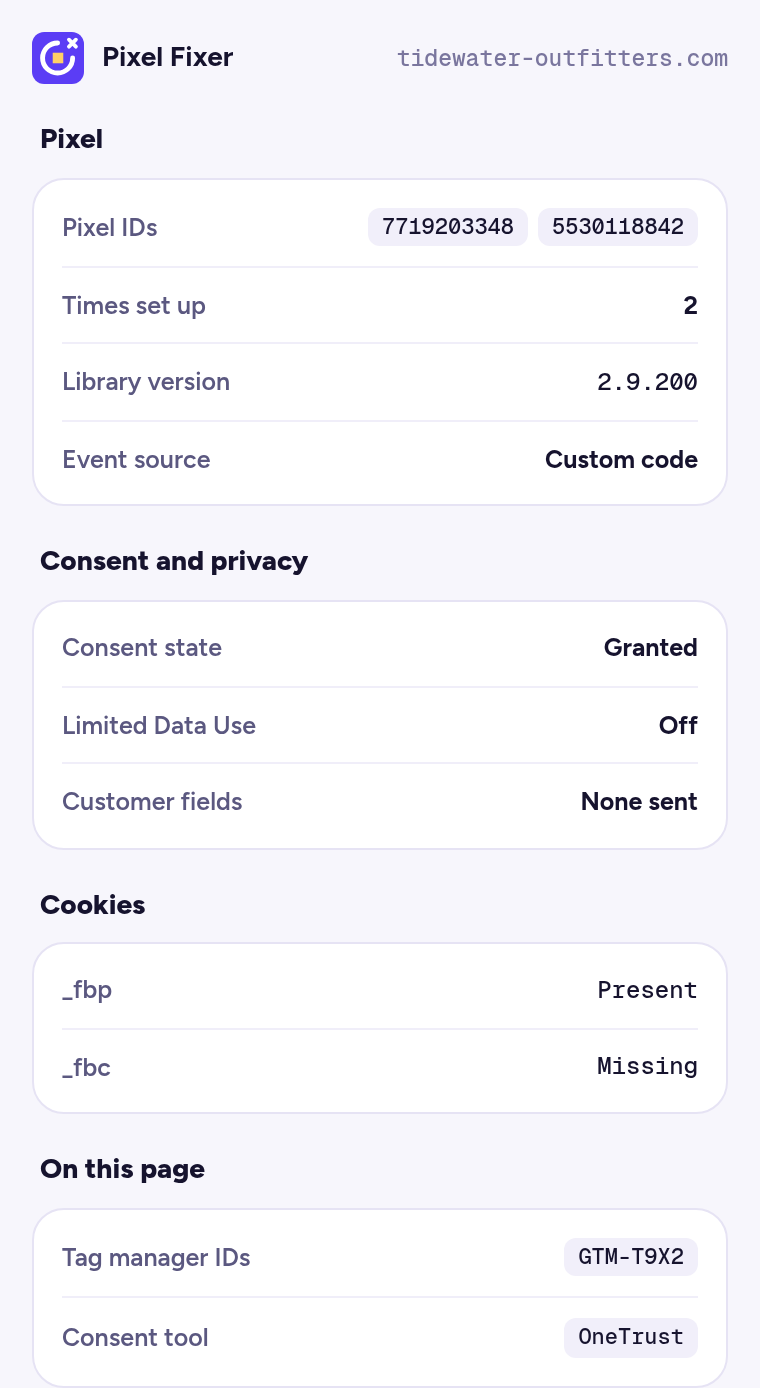
The facts about the page, at a glance
The Setup tab shows the pixel IDs on the page, how often each was set up, the library version, the consent state, the pixel cookies, the tag manager and the consent tool.
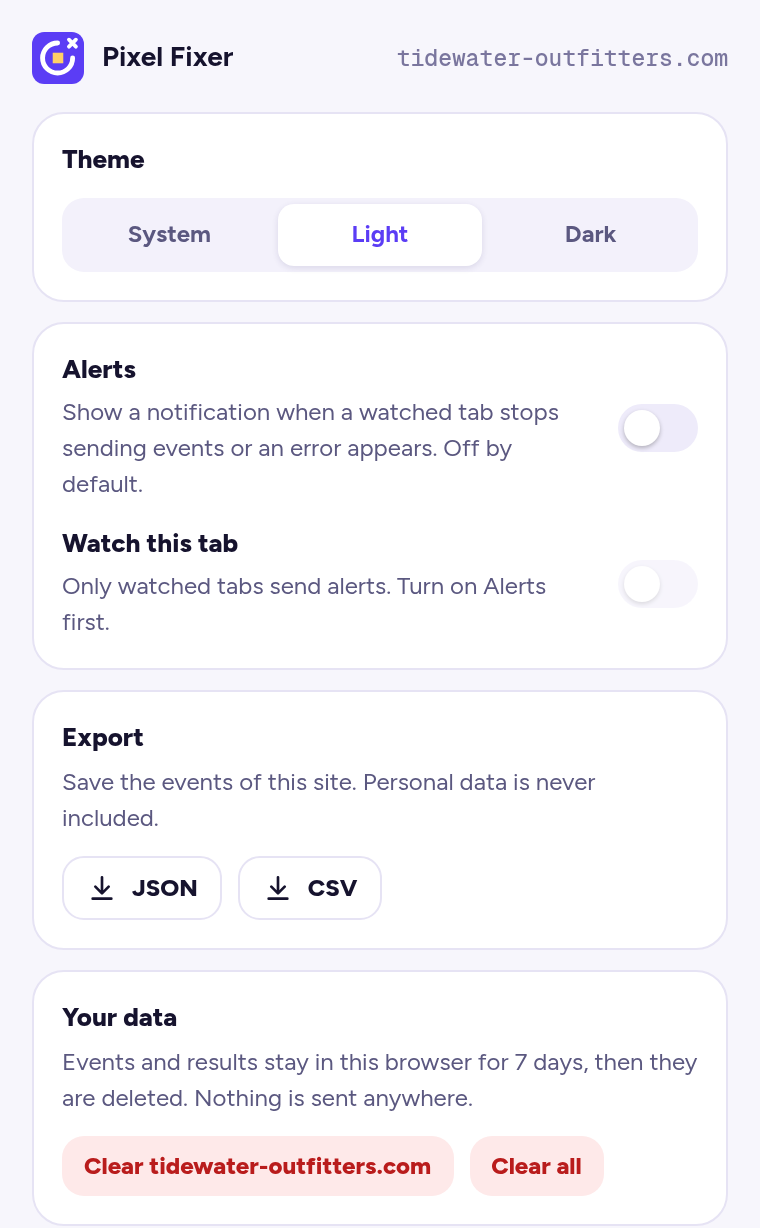
Light, dark or system theme
The panel follows your choice.
15 languages
It follows your browser language.
JSON or CSV export
Save events to a file on your device.
Optional alerts
Off by default. A local notice when a watched tab goes quiet.
Privacy
Your data stays with you
Everything stays in this browser
Events and results are saved on your device and nowhere else.
History is deleted after 7 days
An hourly cleanup removes old data, and you can clear it yourself in Settings.
No analytics and no remote code
The extension makes no network requests of its own and all code is in the package.
Personal data is never stored
Email addresses and phone numbers are masked before anything is saved.
What it cannot do
- It is a browser-side check. It cannot see events sent from a server.
- It has no access to your Meta account or to Events Manager.
- A blocked script is reported as likely, not proven, because only your browser knows what blocked it.
FAQ
Questions people ask first
Why is my Meta Pixel not detected?
The usual reasons are a cookie banner that holds the pixel until a visitor accepts, a tag manager that starts it late or never, a pixel that runs only inside an iframe, a blocked or late script, a policy that stops the script, or no pixel code on the page. Open the Diagnose tab. It checks each of these and shows which one it found.
How do I test and debug my Meta Pixel?
Open the page, open the side panel and press Test again. Watch the Events tab while you click through the page, for example by adding a product to the cart. Each event shows a status and a plain fix. Use the Diagnose tab when no events appear.
Is it private?
Yes. Everything stays in your browser for 7 days at most. The extension does not send data anywhere, has no analytics and does not store names, emails or phone numbers.
Does it work with a tag manager?
Yes. It shows the tag manager it found and tells you when the pixel tag starts late or never starts.
Does it need an account?
No. Install it, open the panel and use it.
Which browsers does it run in?
It is a Chrome extension. It uses the Chrome side panel, so it needs a recent version of Chrome or another browser built on the same engine that supports side panels.
What does Confidence mean?
It shows how strongly the evidence points to the cause. High means the page showed a clear sign. Low means the cause is an estimate from limited signs.
Stop guessing why your pixel is silent
Add the panel to Chrome, open the page that should run the pixel and read the verdict.
Add to Chrome